On-Prem Advanced Model Targets
Create instantaneous Advanced Model Targets locally without uploading 3D data to the cloud.
Introduction to On-Prem Advanced Model Targets.
On-Prem Advanced Model Targets work the same way as Advanced Model Targets being detectable and tracked from any side of the object it matches.
On-Prem Advanced Model Targets are for developers looking to use Advanced Model Targets without uploading their 3D CAD data to the cloud.
Prerequisites and Limitations
For Vuforia Engine, an Enterprise license is required to test and use this feature. Vuforia Studio customers do not need a special license.
The following platforms and versions are currently supported:
Device support
- iPhone 12+
- Requires iOS 18+.
- iPhone 15+ is recommended for best performance.
- iPad support:
- iPad Pro 5th Gen and later (recommended).
- iPad 10th Gen and later.
- iPad Air 4th Gen and later.
- iPad Mini 5th Gen and later.
- iOS 18+.
- Android:
- For best performance see Recommended Devices
On any other devices, the On-prem Advanced Model Target will behave just as a standard (non-Advanced) Model Target. For that purpose, a fallback Guide View can be specified during Model Target generation.
Tip
On-Prem Advanced Model Targets generated with Vuforia Engine tools version 11.3 or earlier did not support Android devices. These older targets are deprecated and support will be removed in a future version. It is recommended to regenerate your On-Prem Advanced Model Target with the Model Target Generator or Model Target CLI version 11.4 or later for maximum platform compatibility.
Workstation support
Target Generation is supported on the versions that the Model Target Generator and Model Target CLI supports. See Supported Versions for details.
Tip
We recommend running the MTG or MTG CLI in an environment using a CPU with multiple physical cores to support multithreading. Any CPU power saving options should be disabled to ensure maximum performance.
- Testing using Unity Play Mode is supported on:
- MacOS 15.0 or later (M1 chip or newer required)
- Windows
Generation support
Only the OBSERVATION preset is supported.
The On-Prem Advanced Model Target must be generated using the latest (11.4+) Model Target Generator and Model Target CLI tool.
Generate an On-Prem Advanced Model Target
Use the Model Target Generator (MTG), the Model Target CLI, or Vuforia Studio to generate On-Prem Advanced Model Targets. Make sure to use the Enterprise versions of the MTG and Model Target CLI to get access to the features. They are available in the Enterprise tab of the Engine Developer Portal.
Model Target Generator - Enterprise
Log in to the Enterprise version MTG with the account that owns the Enterprise license.
Steps:
-
Import the CAD model like other Model Target creation processes and follow the steps in the Model Target Generator.
-
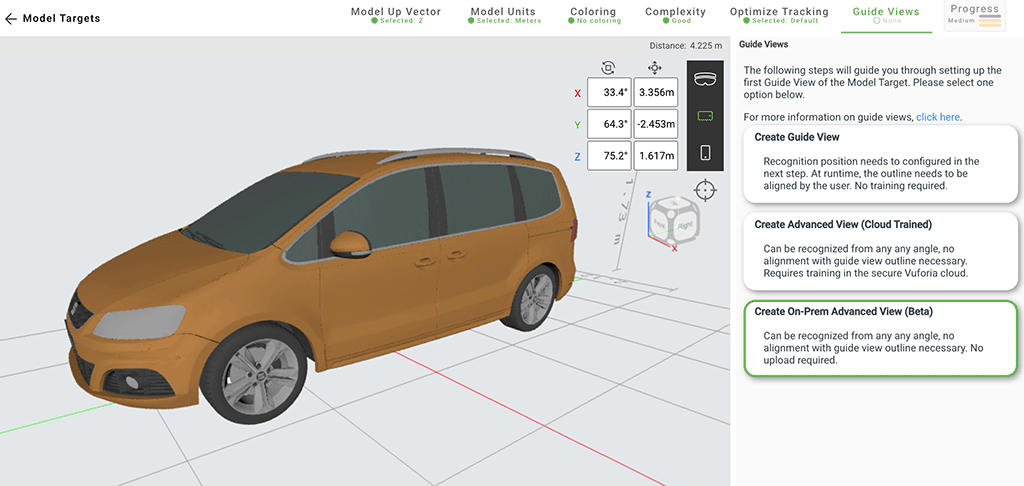
In the Guide Views tab, select Create On-Prem Advanced View.
-
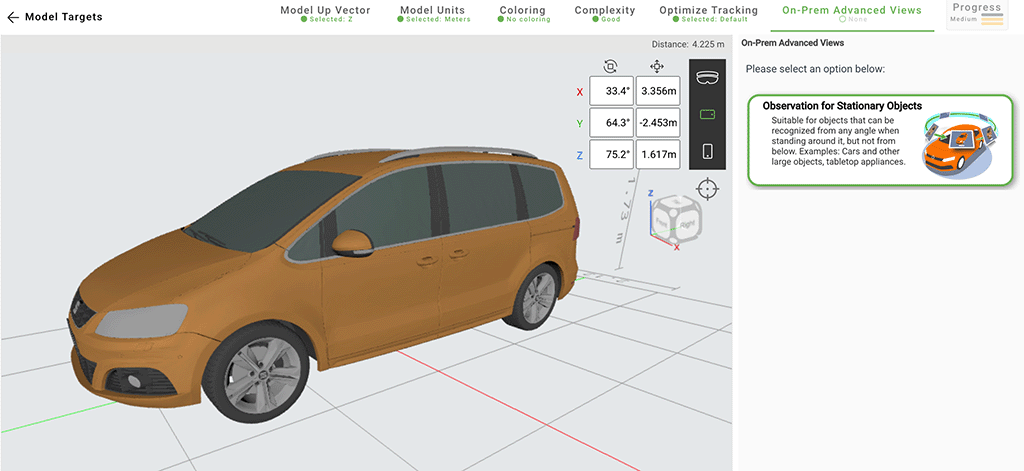
Currently, only the Observation Preset is available.
-
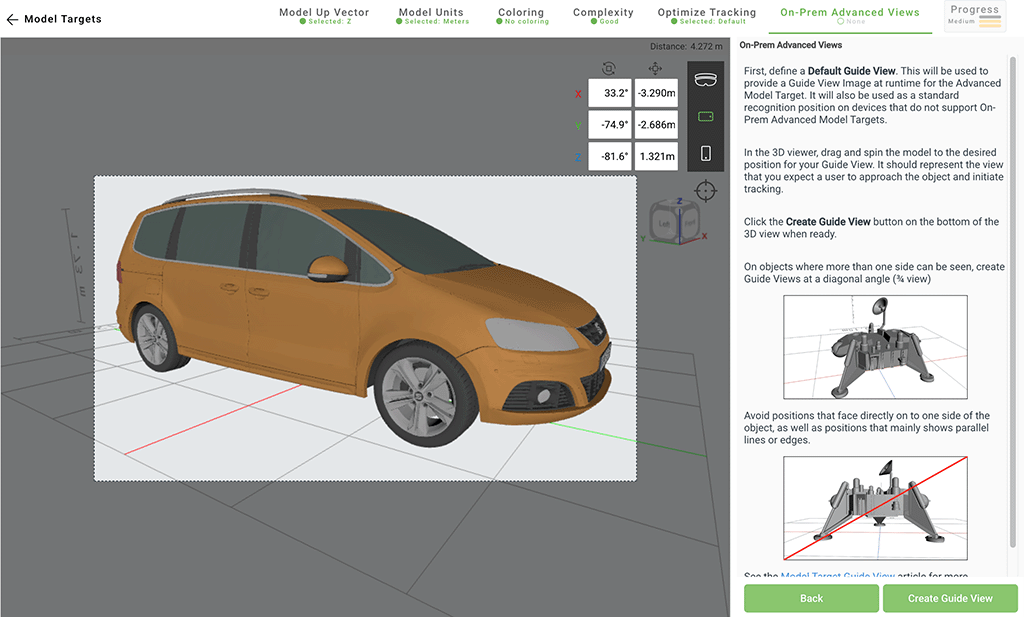
In the next step, a fallback Guide View can be defined. This will be used on devices that do not support On-Prem Advanced Model Targets.
-
Confirm the Observation preset and generate the Model Target.
The following files are generated in the output folder:
- DAT
- XML
- Unity Asset Package
Model Target CLI
Run the Model Target CLI from a terminal or shell window.
For MacOS, you might need to allow running untrusted software: https://support.apple.com/en-us/102445
Steps:
-
Execute the following:
For Windows/Linux
For Mac- The password and username are associated with your Vuforia Developer Account. Alternatively, Oauth credentials can be used as well.
-
The JSON file must specify the OBSERVATION preset. Here’s an example:
The following files are generated. Add -o with a folder path to change the output file directory.
- DAT
- XML
- Unity Asset Package
NOTE: Analytics only contain data on authentication credentials and associating generations with the Vuforia Developer account.
Test Your Model Target
Note
To run On-Prem Advanced Model Targets generated with Vuforia Engine tools version 11.3 or earlier, the plugin file onprem-amt-plugin-v1.arc (~115 MB) must be added to the app (either next to the dataset or in a dedicated plugin directory).
First launch
The first time you load your app, there will be a noticeable startup delay during runtime, which can last a few seconds. This is due to the plugin file being imported. The second launch should run faster.
Run in Vuforia Creator App
This feature requires an up-to-date version of the Vuforia Creator App (11.4 or later).
- Download the Vuforia Creator App from the Apple store.
- Add the generated DAT file to the Assets folder. See Import and Test Assets for details.
-
For On-Prem Advanced Model Targets generated with Vuforia Engine tools version 11.3 or earlier, the
onprem-amt-plugin-v1.arcplugin file needs to be imported.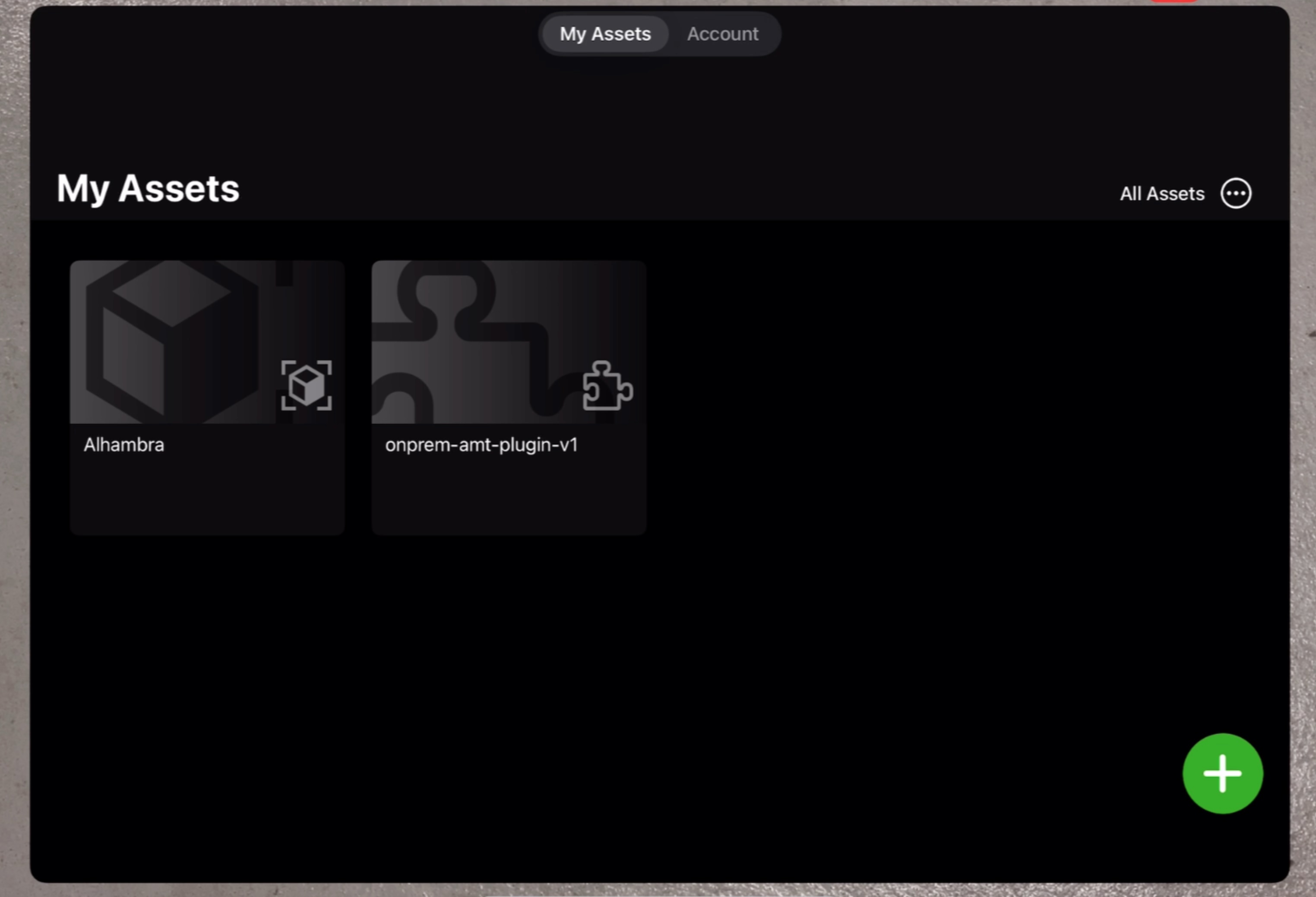
-
In the main menu, select the added Model Target to test detection and tracking from any angle with the physical object.
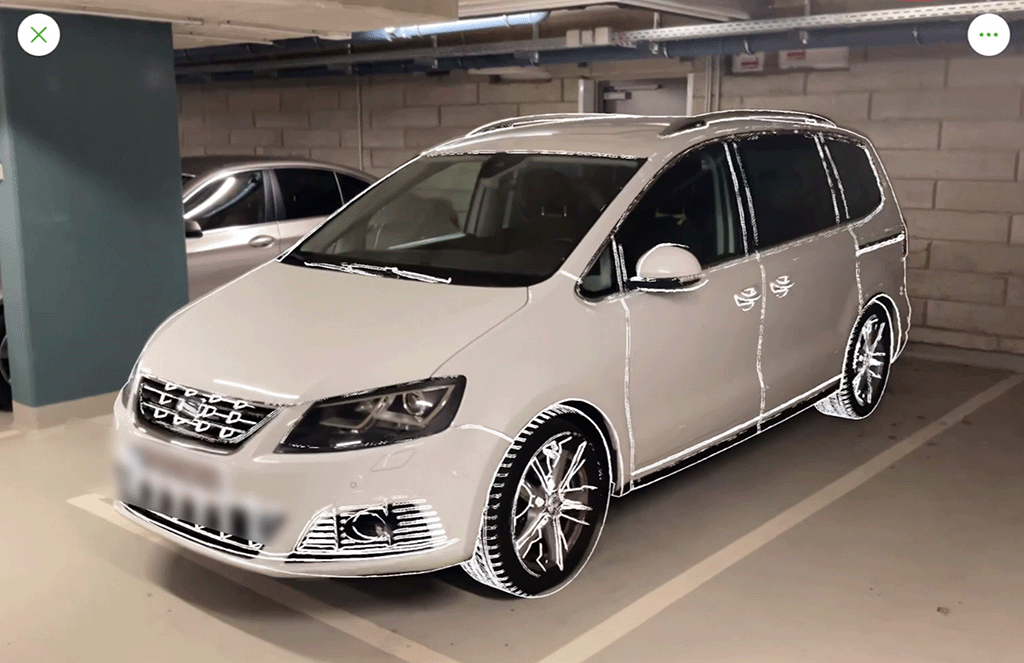
Run in Unity
On-Prem Advanced Model Targets have the same authoring workflow as Advanced Model Targets.
- Import the latest Vuforia Engine Unity extension into your Unity project.
- Import the Unity Asset package of your generated On-Prem Advanced Model Target into the project.
- For On-Prem Advanced Model Targets generated with Vuforia Engine tools version 11.3 or earlier, ensure that the
onprem-amt-plugin-v1.arcplugin file exists inAssets/StreamingAssets/Vuforia/. - Add an ARCamera GameObject.
- Add an Enterprise license key to the Vuforia configuration.
- Create a ModelTarget GameObject and select the database and target name in the Inspector.
- Verify that the editor shows a preview of the 3D model.
- Ensure that the Model Target is tracked in play mode (MacOS only).
-
Build to your iOS device.
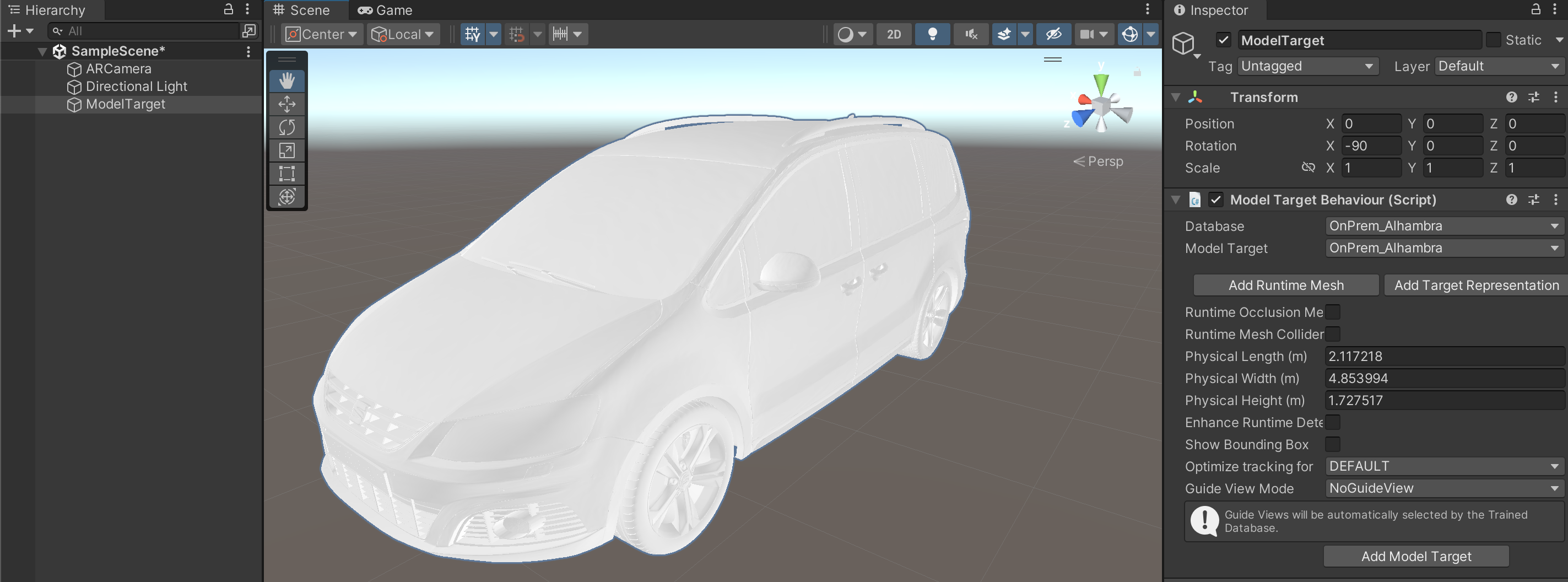
The first launch is expected to take longer. See the section Test Your Model Target for details.
Run in Native sample app
The Vuforia Engine Native Sample app can be modifed to load your On-Prem Advanced Model Target:
- Download the native sample app for iOS.
- Add the generated XML and DAT dataset in the
Assets/ModelTargetsfolder. -
Replace the strings for the
vuModelTargetConfigDefault(). -
For On-Prem Advanced Model Targets generated with Vuforia Engine tools version 11.3 or earlier, the
onprem-amt-plugin-v1.arcfile must be placed in a common folder or next to the On-Prem Advanced Model Target database. If using a common folder, the path to the plugin file must be configured in the Vuforia Engine config during initialization. -
Add an Enterprise license key to the
constexpr char licenseKey[] = "";. - Build to your iOS device.