Building and Using the File Driver Sample in Native
The File Driver Sample demonstrates how to implement a driver which uses an external camera and external device tracking to feed Vuforia Engine camera frames and device poses, respectively. Add the Vuforia File Driver Sample to your project to play back sequences on your device.
Prerequisites
The File Driver sample can be downloaded from the Developer Portal. The File Driver is configured to load an MP4 file that was recorded using the SessionRecorder API. The device tracking poses, which are embedded in the recording, are fed into Vuforia Engine along with camera frames from the video track.
The File Driver Sample includes two sets of example recordings: Use the Stones Image Target and sequence for Native.
Use the Session Recorder API to create your own sequences as MP4 files, See the Session Recorder API and Recording and Playback for details.
Build the Driver
See the steps for building the File Driver sample in the README.md that is a part of the package. Make sure that the output file corresponds to your development platform.
See Using the File Driver Sample in Unity for importing the File Driver in Unity.
Add the File Driver
After you have built the File Driver for your desired platform, the output can be added to your project. The steps below depend on which platform/IDE you are using.
Android
-
Add the
libFileDriver.sofor each needed architecture frombuild/bin/androidto your Android app project by modifying eitherAndroid.mkorCMakeLists.txtand build.gradle. Select the option that best fits your project:-
Android.mk:Add the
libFileDriver-prebuiltdefinition to yourAndroid.mkfile:When defining your local module in the same
Android.mkaddlibFileDriver-prebuiltas a dependency to yourLOCAL_SHARED_LIBRARIES: -
CMakeLists.txt:Add the
VUFORIA_FILEDRIVER_LIBRARYdefinition to yourCMakeLists.txtfile:In the same
CMakeLists.txtadd theFile Driver libraryto your application: -
Gradle:
If using either
Android.mkorCMakeLists.txtyou will also need to update yourbuild.gradleto include the library in the APK. Add the following in yourapp/build.gradle:NOTE: If you are using the Android Plugin version 4.x and a CMakeLists.txt then the above change to
build.gradleis not required.
-
-
Skip this step if you are using Vuforia 10.21. or later as the
FileDriver.jarhas been removed from the File Driver sample.Add the
FileDriver.jarfrombuild/binto your Android-app project. Use the following code in yourapp/build.gradle: -
Add the sample sequence from the
datadirectory to your Android-app project. Add the following in yourapp/build.gradle: -
Modify your App code to configure Vuforia Engine to use the driver by adding the following code before calling
vuEngineCreate():
UWP
- Add the
FileDriver.dllfrombuild/bin/uwpinto your Visual Studio UWP app project.- Import the
FileDriver.dllto the root of your project. Remember to use a .dll that matches your architecture (x64/ARM64) and build type (Debug/Release) configurations. - Click the
FileDriver.dllfrom the project file list and set the property Content to True.
- Import the
-
Add a sample sequence from the data directory into your Visual Studio UWP app project. For example, to use the "stones" sequence:
- Import the
FileDriver/data/stones/FileDriverRecording.mp4file into your project. - Select the file and set the property Content to True.
- Import the
-
Modify your App code to configure Vuforia Engine to use the driver by adding the following code before calling
vuEngineCreate():
iOS
-
In your Xcode project (Or Vuforia sample project), open the build target settings and select the Build Phases tab.
-
In Embedded Frameworks, click the + icon, and on the subsequent pop-up window, click Add Other -> Add Files to add a new item.
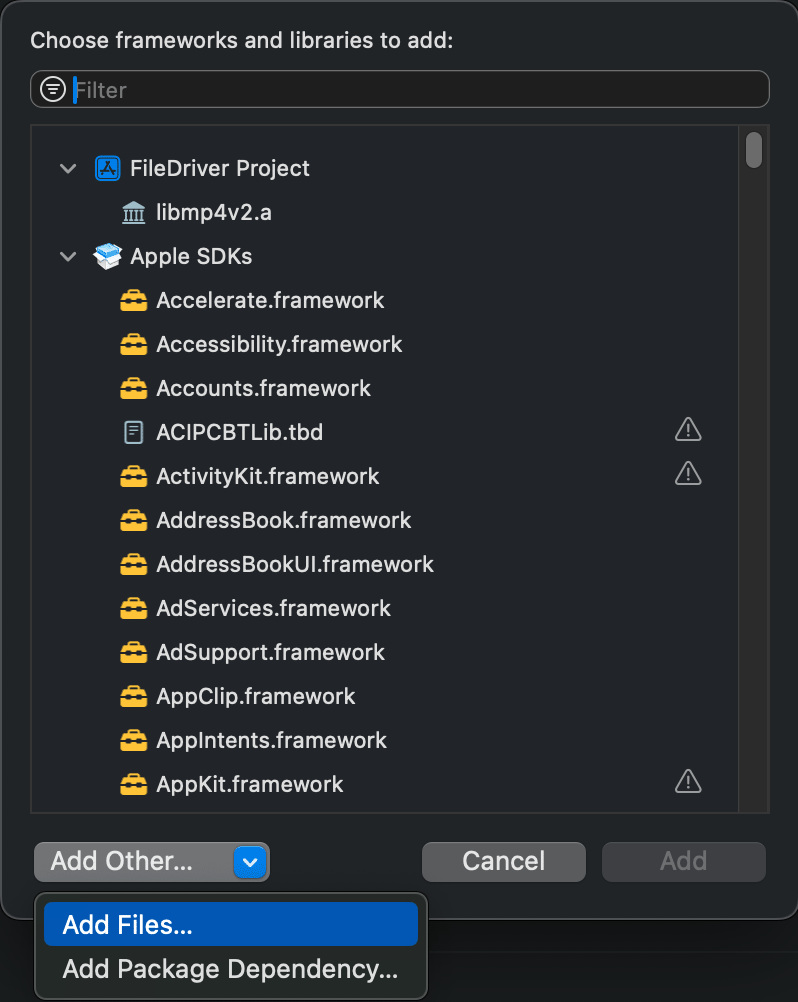
-
From the file selection menu, select your built iOS File Driver Framework found in
bin/Release-iphoneos/FileDriver.framework. -
In the new pop-up window, leave the options at their default values, and click **Finish
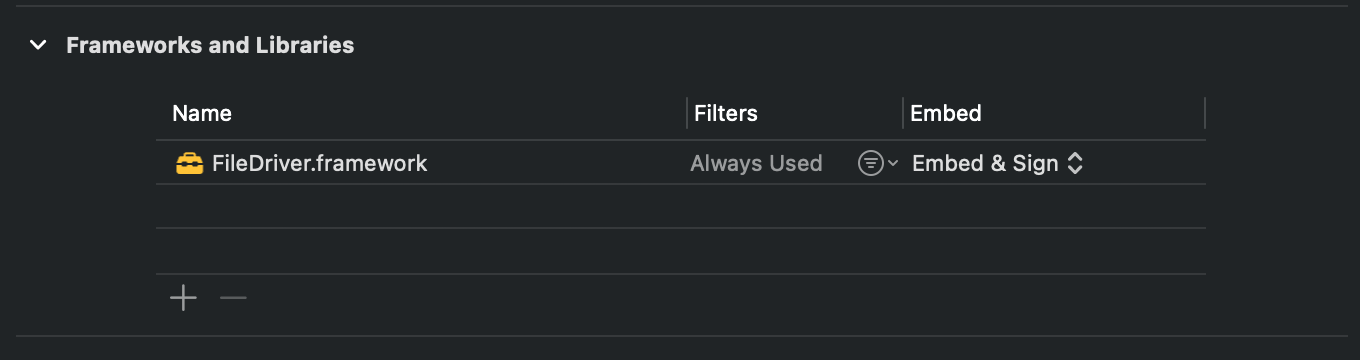
-
Copy the FileDriverRecording.mp4 from the File Driver Sample's
Data/Stonesfolder by dragging the file into the Assets folder in the Navigator pane (Or other, if you are not using the Vuforia sample). -
In the pop-up window, select your project target in the Add to targets menu.
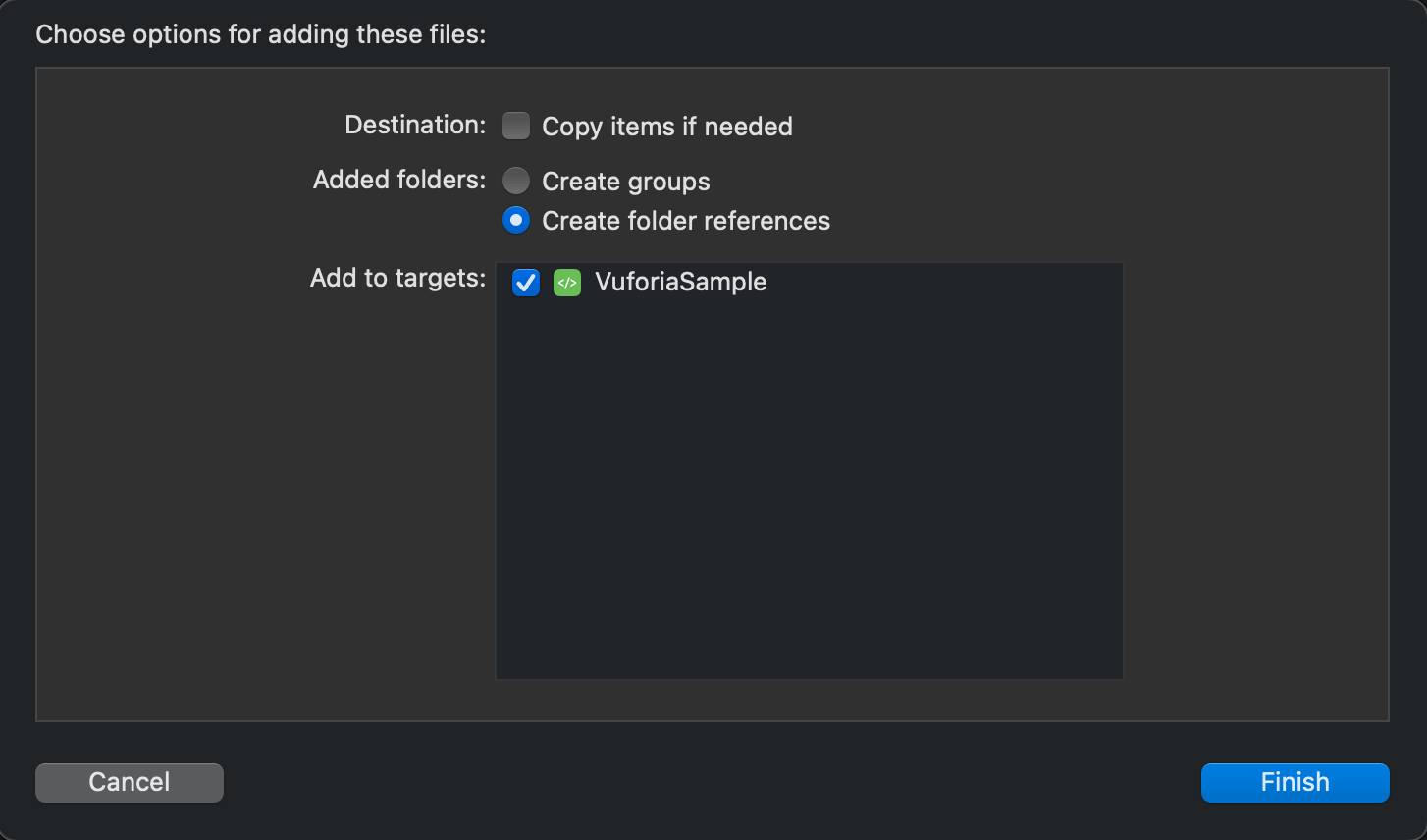
-
Configure your app code to use the driver by adding the following code before calling
vuEngineCreate():
Changing the Sequence
To select which sequence is used for playback, a pointer to a FileDriverUserData object can be passed to the driver using the driverConfig.userData argument.
- If
driverConfig.userDataordriverConfig.userData->sequenceAbsolutePathis NULL, the File Driver will look for a file namedFileDriverRecording.mp4in the main asset location (depending on platform). - If
driverConfig.userData->sequenceAbsolutePathis set to a string starting withasset://, FileDriver will interpret the remaining part of the string as a path in the main application asset location (depending on platform). - Any other string will be interpreted by File Driver as a normal filesystem path.
Playback Control API
The File Driver API exposes playback controls that can be used to configure the playback behavior of a recording.
Supported controls:
- Playback start time
- Playback end time
- Looping playback
- Changing playback mode
Set the FileDriverPlaybackMode() to FILEDRIVER_PLAYBACK_MODE_RESPECT for playing the sequence in real-time with possible frames being dropped or to FILEDRIVER_PLAYBACK_MODE_WAIT for playing the sequence with all frames but possibly slowed to let the Engine keep up. Please refer to the header API documentation for more details. It is available in the include/FileDriverPlaybackController.h file that is part of the File Driver sample package.
Using the playback control API
- After successfully creating the engine with File Driver, a native platform handle to the loaded library can be retrieved using
vuPlatformControllerGetDriverLibraryHandle(). - This handle is used to load the File Driver playback controller functions using the native symbol loading mechanism of the current platform (
GetProcAddress()on Windows/UWP,dlsym()on POSIX systems(known as Portable Operating System Interface). - The retrieved function pointers are used to configure playback at any provided timestamp until the engine is destroyed and thus the library unloaded.
NOTE: Some playback control functions require that the engine is stopped and restarted before the change takes effect.
Example: